

Hey there! As a supplier of silicone LED night lamps, I'm super excited to share with you how you can customize the lighting settings of these awesome lamps. Whether you're looking to create a cozy bedtime atmosphere or add a touch of fun to your space, customizing the lighting is the way to go.
Understanding the Basics of Silicone LED Night Lamps
First off, let's talk a bit about what makes silicone LED night lamps so great. Silicone is a flexible and durable material, which means these lamps can take a bit of rough - handling. And LEDs are energy - efficient, long - lasting, and can produce a wide range of colors.
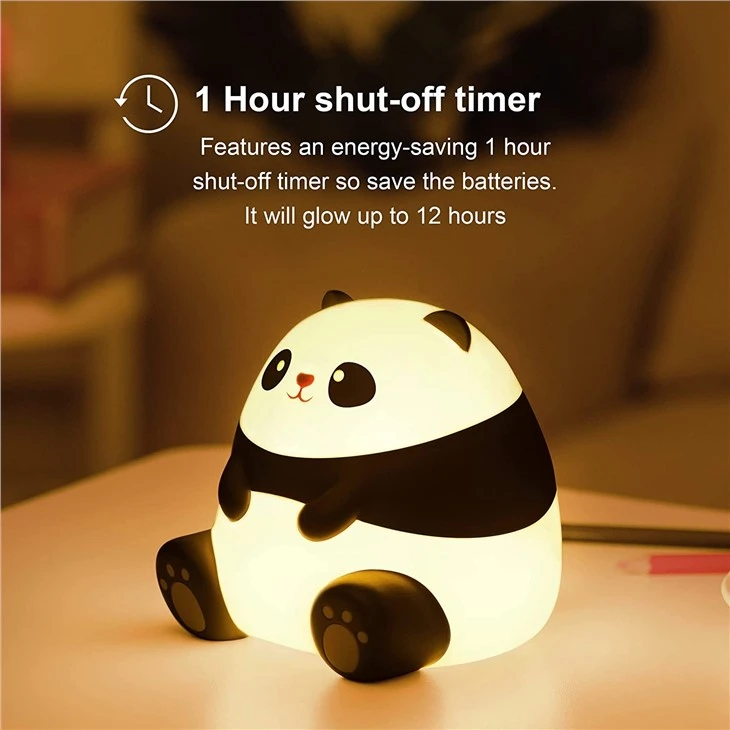
Most of our silicone LED night lamps come with a built - in control system. This could be a simple touch - sensitive area on the lamp itself or a remote control. For example, the Panda Touch Silicone Lamp has a touch - based control. You just need to give it a gentle tap to turn it on or off, and a longer press to change the brightness levels.
Changing Brightness
One of the most common ways to customize your lamp is by adjusting the brightness. It's super useful, especially if you want to use the lamp as a night - light or for a bit of reading.
For lamps with a touch - control system, like the Little Cat Silicone Light, you can usually tap the lamp once to turn it on at a default brightness. Then, if you press and hold your finger on the touch area, the brightness will gradually increase or decrease. Keep doing this until you reach your desired level of brightness.
If your lamp comes with a remote control, it's even easier. The remote will typically have buttons marked with symbols like a sun or an up/down arrow. Pressing the up arrow will make the light brighter, and the down arrow will dim it.
Selecting Colors
Many of our silicone LED night lamps can display multiple colors. This is a great feature for creating different moods. For instance, a soft blue light can be very calming before bedtime, while a bright red or pink can add a party vibe.
To change the color on a touch - controlled lamp, you might need to double - tap or long - press the touch area in a certain way. Each lamp is a bit different, so it's a good idea to check the instruction manual that comes with it.
With a remote - controlled lamp, there are usually color - selection buttons. Some remotes have a wheel - like button that you can turn to cycle through different colors. Others might have numbered buttons, each corresponding to a specific color. For example, the Silicone Animal Lamp with its remote control makes it a breeze to switch between a rainbow of colors.
Setting Lighting Modes
In addition to brightness and color, some of our lamps offer different lighting modes. These modes can create unique lighting effects.

One popular mode is the strobe mode, which makes the light flash on and off quickly. It's perfect for parties or when you want to add some excitement to your room. Another common mode is the fade mode, where the light gradually changes in brightness or color. It gives a very relaxing and dynamic effect.
To activate these modes, look for a "mode" button on the remote control or try a specific sequence of taps on a touch - controlled lamp.
Syncing with Music
Some of our high - end silicone LED night lamps have a music - sync feature. This means the lamp can change its lighting based on the rhythm and beat of the music you're playing.
To use this feature, you first need to connect your lamp to your music source. This could be via Bluetooth or an audio cable. Once connected, the lamp will start pulsing and changing colors in time with the music. It's an amazing way to enhance your music - listening experience, whether you're having a small gathering or just chilling at home.
Troubleshooting Customization Issues
Sometimes, you might run into problems when trying to customize your lamp. If the lamp isn't responding to your touch or the remote control isn't working, there are a few things you can try.
First, check the batteries in the remote control if you're using one. Replace them with fresh ones and see if that solves the problem. If it's a touch - controlled lamp, make sure your hands are dry. Moisture can interfere with the touch - sensitivity.
If the lamp still isn't working properly, it could be a software issue. Try turning the lamp off and on again, and sometimes, a long - press on the power button can reset the lamp to its default settings.
Why Customization Matters
Customizing the lighting settings of your silicone LED night lamp can really transform your space. It allows you to create the perfect atmosphere for any occasion. Whether you're reading a book, having a movie night, or just trying to fall asleep, you can adjust the light to suit your needs.
It also adds a personal touch to your decor. You can make your lamp stand out and reflect your unique style.
Conclusion
I hope this guide has been helpful in showing you how to customize the lighting settings of our silicone LED night lamps. As a supplier, we're always looking to provide you with high - quality products that are easy to use and customize.
If you're interested in purchasing any of our lamps or have any questions about customization, feel free to reach out. We're here to help you create the perfect lighting experience for your home.
References
- Product manuals of Panda Touch Silicone Lamp, Silicone Animal Lamp, and Little Cat Silicone Light.
- In - house research on silicone LED night lamp technology.


